



Managing Futures
Futures allow you to move backordered items to a separate future order so the available items on your current order can continue to fulfillment. When inventory becomes available, you can manage your future items directly on boxpartners.com.
Available options vary by order. Some orders may be eligible to create a future, ship from another distribution center, or both. The options available for your order will be displayed after the order is placed.
Creating a Future
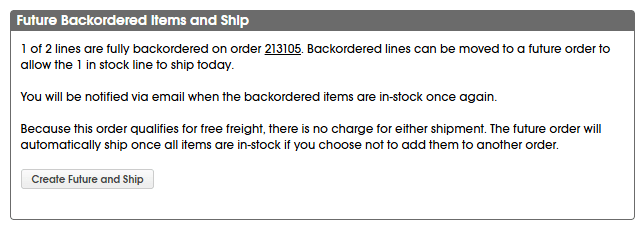
After placing an order with a backordered item, a window will appear with the options available for your order.
To move the backordered item(s) to a future, select Create Future and Ship. The backordered item(s) will be removed from your current order and moved to a future order, allowing the available items to continue to fulfillment.
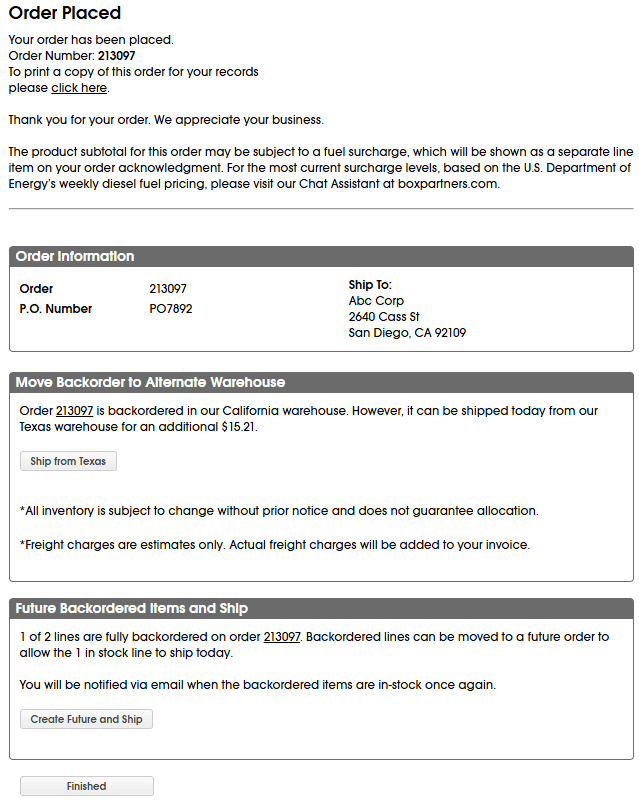
Not all orders will have the same options available. Some may be eligible to create a future but not ship from another distribution center, while others may be eligible for an alternate distribution center but not a future.
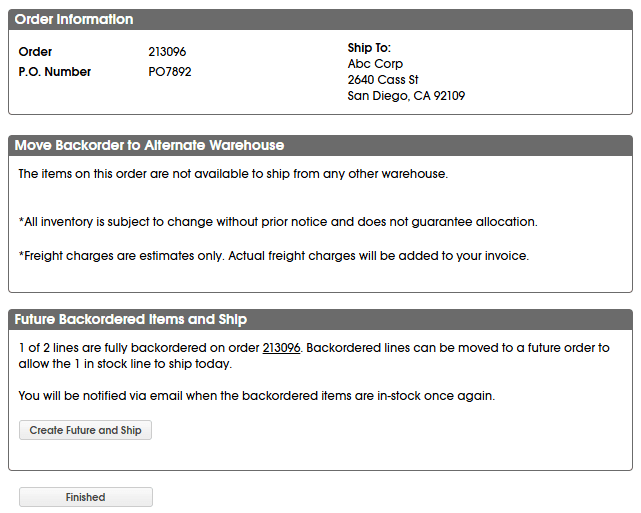
Once the future is created, a confirmation will appear showing that the backordered item(s) have been moved to a future order and the remaining order can continue to fulfillment.
Creating a Future from Open Orders
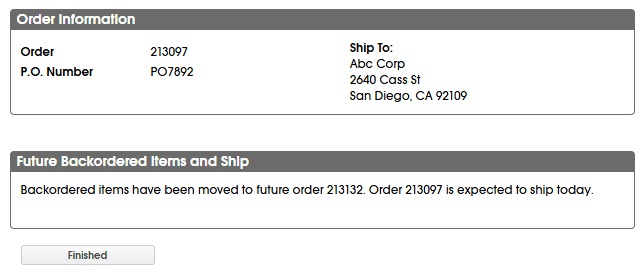
If you do not create a future immediately after placing your order, you can return to the available options from Open Orders.
Locate the applicable order and select the truck icon. A window will open displaying the options available for that order.

Select Create Future and Ship to move the backordered item(s) to a future order.
Futures on Prepaid Orders
If your original order meets the prepaid freight minimum, the future order will also ship prepaid.
The future will automatically ship once all items are in stock if you choose not to add them to another order.
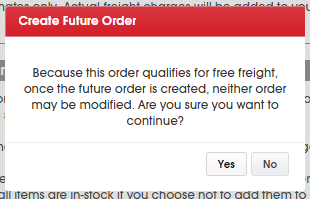
Before the future is created, a confirmation will appear explaining that neither the original order nor the future order can be modified after the future is created. You may cancel the orders if changes are needed.
When all items on the future order are in stock, you will be notified and the items will be held for 48 hours. During this time, you may add the future items to another order going to the same Ship To location.
If the future items are not added to another order within 48 hours, the future order will automatically ship using the best-way shipping method at no additional freight charge.
Important: If a future contains multiple items, all items must be in stock before the 48-hour period begins.
Futures on Orders Below the Prepaid Freight Minimum
If your original order does not meet the prepaid freight minimum, you will be notified when a future item becomes available.
The available item will be allocated to your account for 10 business days. During this time, you can add it to another order going to the same Ship To location. If the item is not added to another order within 10 business days, it will be removed from the future and the inventory allocation will be released.
If you choose to ship the future item alone, applicable freight charges will apply.
Adding Available Futures to an Order
When you select a Ship To location while creating a new order, boxpartners.com will automatically check for available future items for that location.
If available futures are found, they will appear under In Stock Future Order Items on the order entry page.
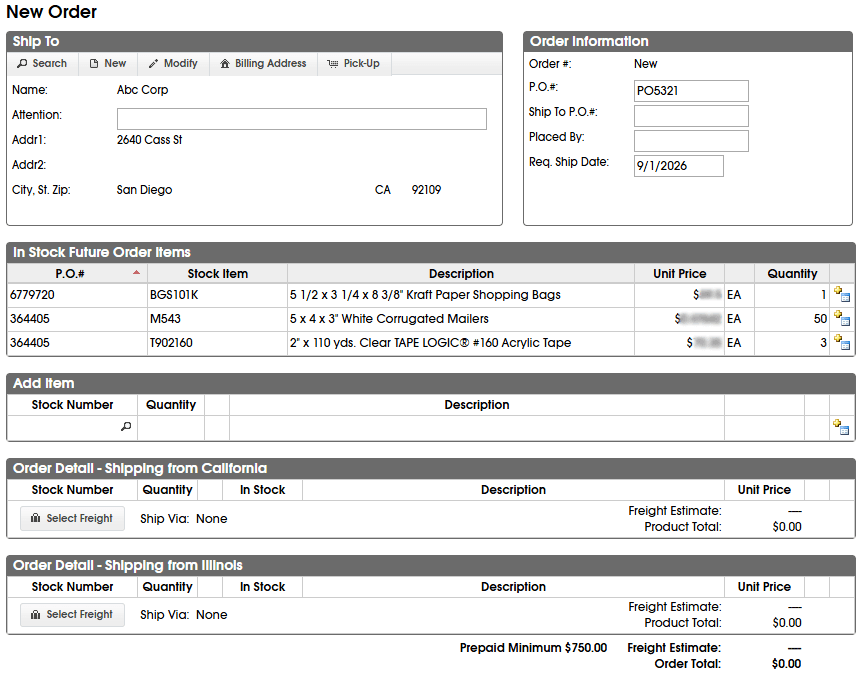
To add a future item to your order:
Select the Add icon next to the future item.
The item will be added to your current order.
Adjust the quantity if needed.
Add any additional items and continue placing your order as usual.
Future items and new items can be included on the same order.
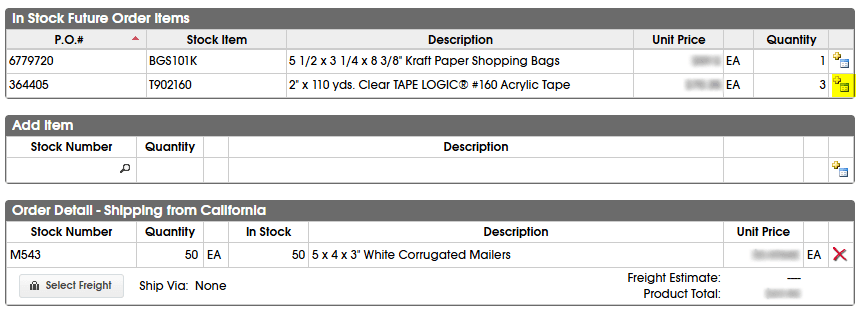
Changing or Removing a Future Item
You can change the quantity of a future item after adding it to your order.
Important: Once the order is placed, the entire future line will be removed from the original future order. Any remaining quantity will not remain on the future.
If you remove a future item from your order before placing it, the item will return to In Stock Future Order Items and can be added again.
Managing Futures on Email Orders
If you place an order by email and in-stock future items are available for the same Ship To location, the order will be placed on Process Hold and you will be notified that future items are available.
Log into boxpartners.com and locate the order under Open Orders. When you modify the order, the available future items will appear under In Stock Future Order Items, where they can be added before the order is released.
Frequently Asked Questions
How can I add a future to an order on boxpartners.com?
After selecting a Ship To location, any available future items for that location will appear under In Stock Future Order Items. Select the Add icon to include the item on your order.
My account is configured for the automatic addition and removal of futures. Does this new process apply to me?
Yes, this new management process applies to all BOX Partners customers that place orders through the web or email. Due to the highly customized configurations underpinning each EDI connection, this service is only offered on boxpartners.com and does not apply to EDI orders.
I place orders through email. How can I use this new futures process?
All email orders for Ship To locations that have futures on record will trigger an email notification to the email that placed the order and the order acknowledgement email on record with BOX letting them know of the availability of futures for that Ship To. The future item(s) can then be managed through the open orders screen at boxpartners.com as described above before the order is released for fulfillment.
Can all users on boxpartners.com manage futures?
No, only administrators and users with permission to place orders may manage futures. Please reach out to your administrator to request changes to your current permissions on boxpartners.com.
Can I call in and manage my futures over the phone or by email with Customer Service?
The ability to manage futures will be exclusively available on boxpartners.com.
I place orders via EDI. Is this functionality available to me?
Due to the highly customized configurations underpinning each EDI connection, this service is only offered on non-EDI orders.
